Parts Implemented by Ahmet Gülüm
To access Benefits page from home page of Chess, click Benefits bar as shown below picture.
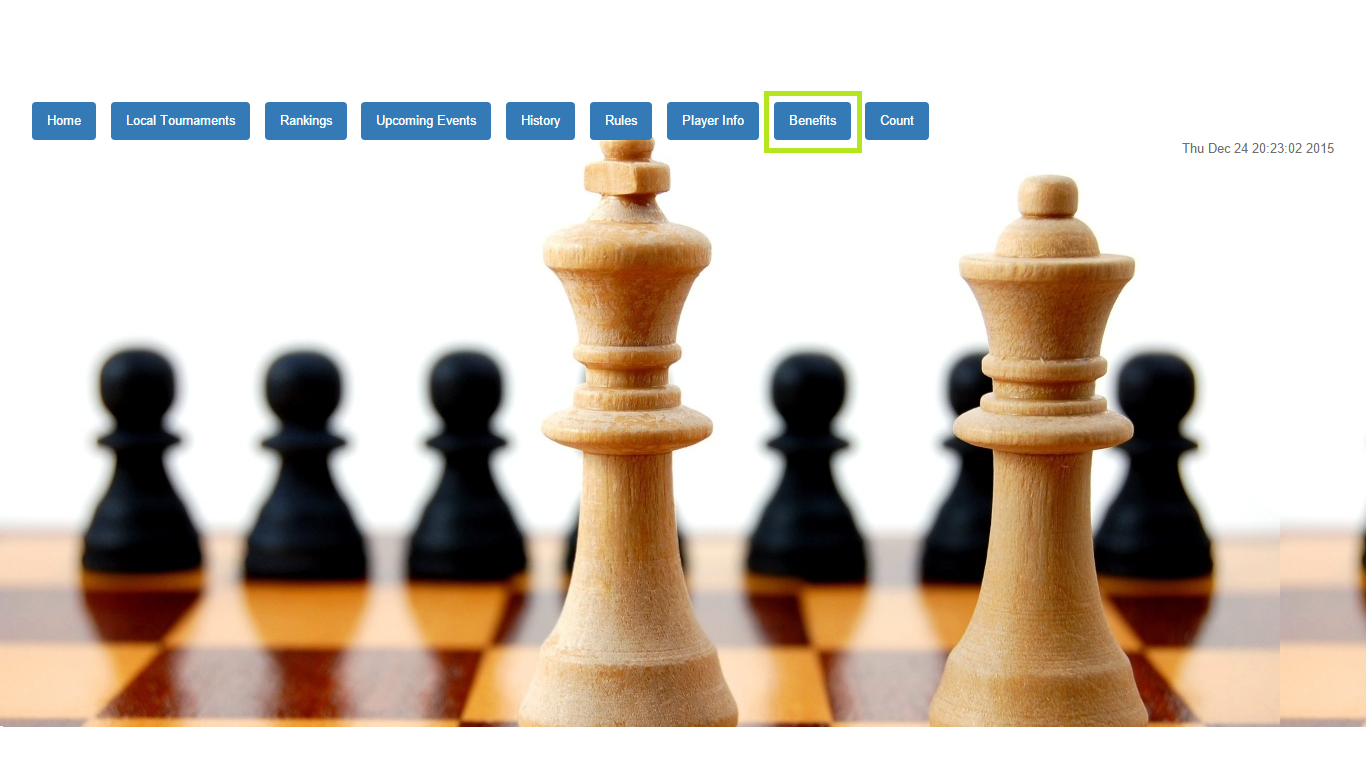
This is the main page
Benefits Page
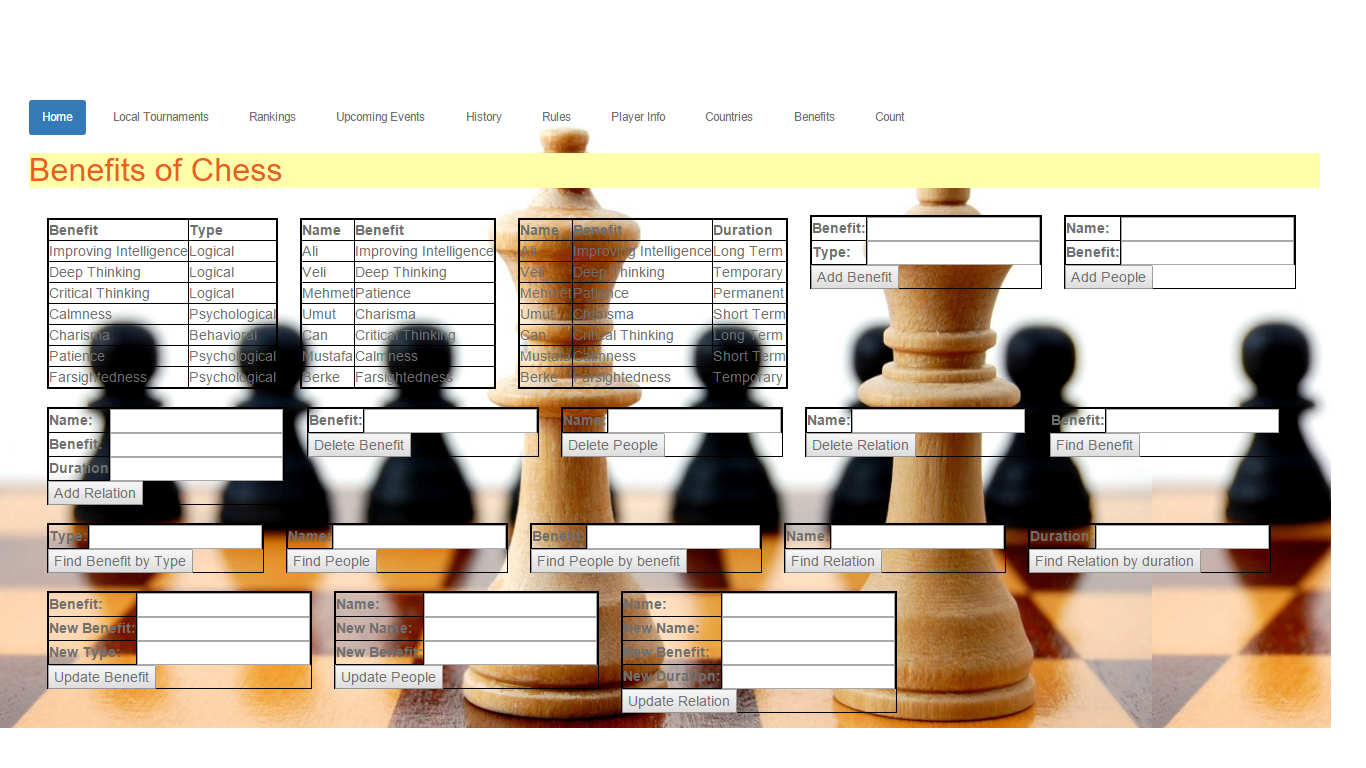
This is the benefits page
| Attribute | Type | Explanation | |
|---|---|---|---|
| id | serial | ID of the benefits | |
| Benefit | string | Name of the Benefit | |
| Type | string | Type of the Benefit |
On the screenshot shown above the player rankings data is displayed. In this table there are 2 columns displayed to the user. Id column is not displayed.
There are five operations that can be carried on the table. Those are: | - Add Benefit | - Find Benefit | - Find Benefit by Type | - Delete Benefit | - Update Benefit
Add Benefit
If the user wants to add a benefit to the table the user should fill the fields shown below and click on the button “Add Benefit”.
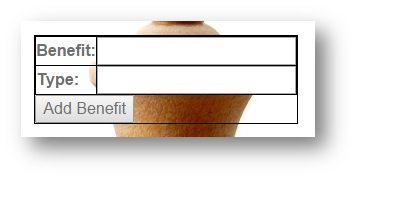
After the user fills the fields and clicks on the “Add Benefit” the benefit is added to the table and displayed in it.
Delete Benefit
The benefit can be deleted from the table by name. After entering the name to be deleted , “Delete Benefit” button is clicked.
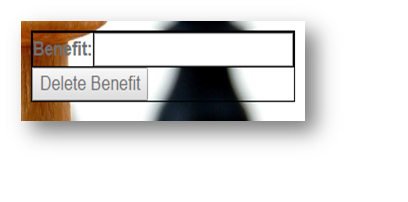
Find Benefit
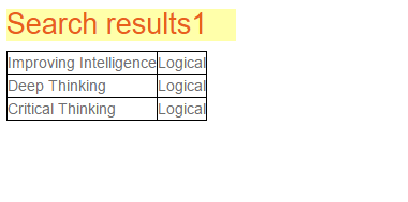
The benefit can be searched by typing name of it which the user wants to display. After the name is typed into the field, the “Find Benefit” button should be clicked to perform the action. Search results will be shown below of the benefits page under the search results 1.
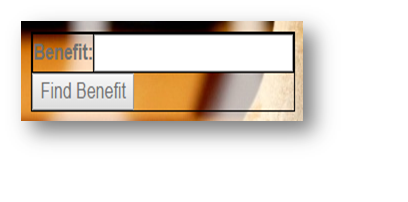
Result of the search operation.
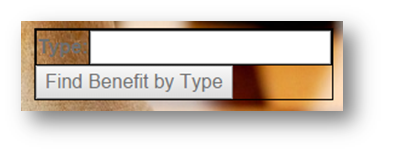
Find Benefit by Type
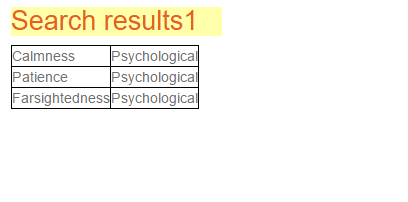
The benefit can be searched by typing type of it which the user wants to display. After the type is entered into the field, the “Find Benefit by Type” button should be clicked to perform the action. Search results will be shown below of the benefits page under the search results 1.
Result of the search operation.
Update Benefit
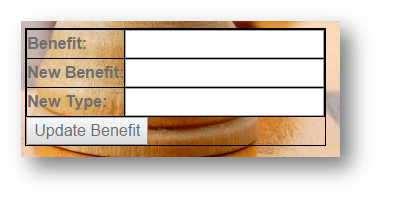
To update a benefit , the user should type new name and new type of benefit, then click “Update Benefit”.
| Attribute | Type | Explanation | |
|---|---|---|---|
| Peopleid | serial | ID of people | |
| Name | string | Name of person | |
| Benefit | string | Benefit that person has |
In this table there are 2 columns displayed to the user. Peopleid column is not displayed.
There are five operations that can be carried on the table. Those are: | - Add People | - Find People | - Find People by Benefit | - Delete People | - Update People
Add People
If the user wants to add a person to the table, the user should fill the fields shown below and click on the button “Add People”.
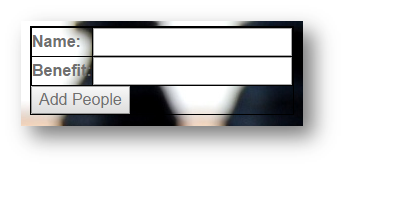
After the user fills the fields and clicks on the “Add People” the person is added to the table and displayed in it.
Delete People
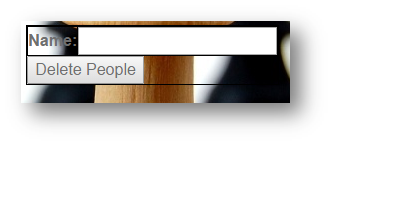
The person can be deleted from the table by name. After entering the name to be deleted , “Delete People” button is clicked.
Find People
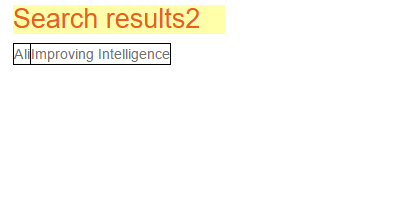
The person can be searched by typing name of it which the user wants to display. After the name is typed into the field, the “Find People” button should be clicked to perform the action. Search results will be shown below of the benefits page under the search results 2.
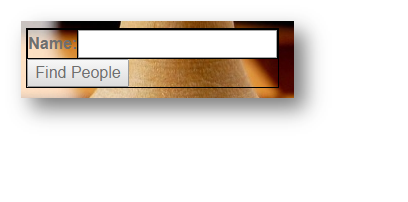
Result of the search operation.
Find People by Benefit
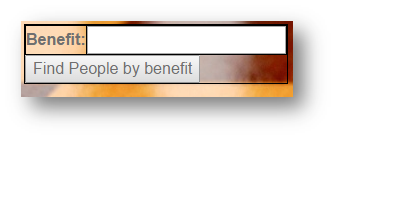
The person can be searched by typing Benefit that he has, which the user wants to display. After the benefit is entered into the field, the “Find People by Benefit” button should be clicked to perform the action. Search results will be shown below of the benefits page under the search results 2.
Result of the search operation.

Update People
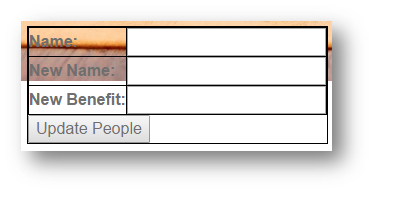
To update a person , the user should type name of the person, new name and new benefit, then click “Update People”.
| Attribute | Type | Explanation | |
|---|---|---|---|
| id | serial | ID of relation | |
| Name | string | Name of person | |
| Benefit | string | Benefit that person has | |
| Duration | string | Duration of Benefit |
In this table there are 3 columns displayed to the user. Peopleid column is not displayed.
There are five operations that can be carried on the table. Those are: | - Add Relation | - Find Relation
- Find Relation by duration
Add Relation
If the user wants to add a relation to the table, the user should fill the fields shown below and click on the button “Add Relation”.
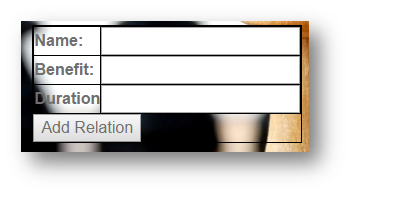
After the user fills the fields and clicks on the “Add Relation” the relation is added to the table and displayed in it.
Delete Relation
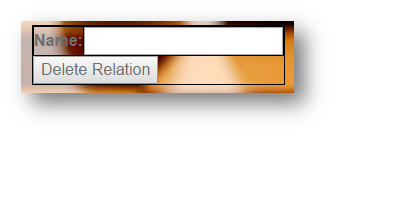
The relation can be deleted from the table by name. After entering the name to be deleted , “Delete Relation” button is clicked.
Find Relation
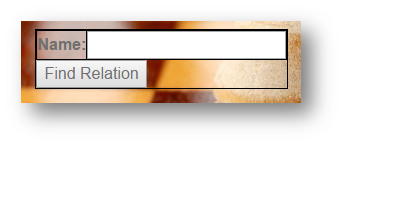
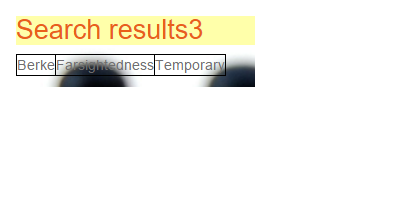
The relation can be searched by typing name of it which the user wants to display. After the name is typed into the field, the “Find Relation” button should be clicked to perform the action. Search results will be shown below of the benefits page under the search results 3.
Result of the search operation.
Find Relation by Duration
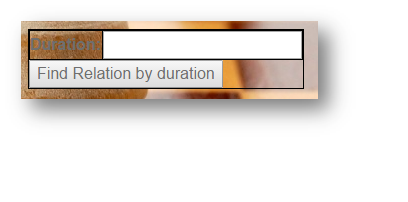
The relation can be searched by typing duration, which the user wants to display. After the duration is entered into the field, the “Find Relation by Duration” button should be clicked to perform the action. Search results will be shown below of the benefits page under the search results 3.
Result of the search operation.

Update Relation
To update a relation , the user should type name of the person, new name , new benefit and new duration, then click “Update Relation”.
